
You just launched your new website. It looks great on your screen, and everything works when you click around, and all the actions respond well. But can everyone actually use it?
At this very moment, someone may be attempting to navigate their way to your site by using only their keyboard because they are unable to use a mouse. Another person may be relying on a screen reader that will read the content of the page out loud to them because they are blind. Yet another may be having difficulty reading your text due to a lack of contrast between colors because their eyesight is too weak.
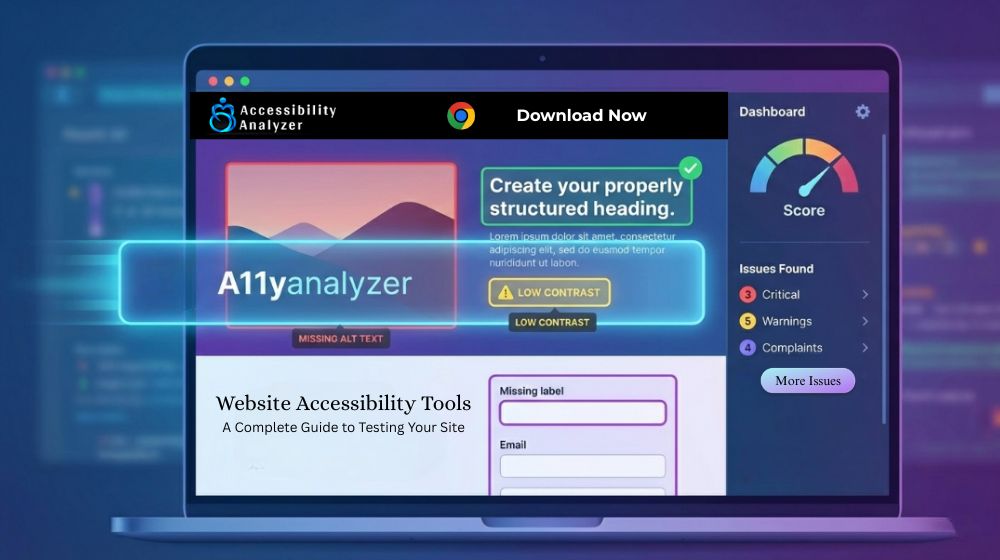
This is the place where a website accessibility tool becomes your best friend. Think of it like a pair of glasses; it puts on to show you the problems you didn’t know existed. In simple terms, these tools test your site and show you what’s blocking people from using it properly.
The thing is, accessibility isn’t purely a technical matter, and you don’t have to be a coding ninja to make sense of it. All you need to care about is reaching everyone who wants to use your website. Let’s walk through how these tools work and why they matter more than you might think.
Why You Actually Need These Tools
Here’s something people generally don’t grasp: you just can’t see accessibility problems by looking at your site. A page might look perfect to you, but it could be completely inaccessible for someone with a disability.
Maybe your dropdown menu works fine if you’re using a mouse, but it breaks when a user tries a keyboard to navigate. Or your images don’t have descriptions, so screen reader users cannot fully understand the meaning of your content. These things are invisible until you test them.
A good website accessibility tool acts like a second pair of eyes. It scans your pages looking for these hidden barriers. Some problems are obvious once pointed out, like text that’s too light to read. Others can be more technical, buried in your site’s code where you’d never find them manually.
What a Website Accessibility Tool Actually Tests
Let’s break down what happens when you run one of these tools on your site. By understanding the checks, you grasp why each issue matters.
- Text and Color
First, the website accessibility tool checks your text. Can people read it? This is not about whether you like the font. It’s about the contrast between text and background colors. Light text on a light background fails. Dark text on a dark background fails. The tool measures these combinations and tells you if they meet standards. This is helpful for individuals with low vision, color blindness, or anyone using their phone in bright sunlight.
It also checks the font sizes; tiny text causes problems for many users. A website accessibility tool makes sure that the text can be increased in size without breaking the layout of your page so that it is easy to read for everyone.
- How Structure and Navigation Work
Your page should have some logical structure. Each page should contain one main heading (H1), followed by subheadings (H2, H3…) in hierarchical order. Think of them like chapters in a book; they need to make sense.
A website accessibility tool can check this heading order. But why does it matter? This is because the screen readers jump around through headings to read the content on your page. If your headings are out of order, they are lost. Imagine trying to read a book where chapter 5 comes before chapter 2; you would not be able to understand what is being said, and you would close the book even before the chapter ends.
The tool also tests keyboard navigation to check whether users can navigate through your entire site using only their keyboard. Can they activate buttons and links without a mouse? Many people navigate this way, especially those with motor issues or who rely on Braille, so every interactive element must be accessible.
- Images
Alt text is important for every image because it describes the image to a visually impaired person. The screen reader will read the image description out loud when it comes across apicture with alt text. If the description is not present, the screen reader just skips over it, and the users miss important content.
Your website accessibility tool will flag images without alt text. It can’t tell you if your description is good, but it catches the images you forgot entirely.
Videos require captions. Audio requires transcripts. These are not simply nice-to-haves. Deaf users require them in order to consume your content. The tool checks to see if they’re present.
- Forms and Interactions
Forms are everywhere online. Contact forms, search boxes, login screens, and checkout pages. They are also the common places where accessibility breaks down.
Labels should correctly be associated with input fields. For example, if a screen reader were to land on a text box, it would be able to read out the information that the user is required to fill in, which makes the form-filling process an achievable task for a blind person. A website accessibility tool checks for such associations.
Filling out forms is a tedious task and one that is prone to many errors. So, such tools also ensure that the error messages are clear and unskippable. When people make a mistake, they should be told what went wrong and how to correct it.
Types of Web Accessibility Testing Tools
Not all of these tools work the same way. Figuring out how they differ will help you choose the right one.
- Browser Extensions
These live in your web browser. Click the icon, and it scans whatever page you’re viewing. Browser extensions work great because they test pages as you build them. You don’t need to publish anything first.
They can even reach password-protected pages. If you want to build a members-only section, you can test it. This makes browser-based tools very practical for developers.
- Online Checkers
These are sites where you paste in your URL. The service visits your page and runs tests: Simple and quick without any installations.
But there is one downside to it: they can only test public pages. If your page requires a login, these tools can’t reach it. They are great to use on the public testing of your site, but a bit limited for private content.
- Automated Scanners
Some of the website accessibility tool options offer scanning of your entire site in one go. They crawl through all your pages after you provide them with your homepage. This saves time on large sites.
These scanners generate reports highlighting problems throughout your website. You can identify trends: perhaps all of your blog posts contain the same accessibility error, like missing alt texts. Fix it once in your template, and you’ve solved it everywhere.
- Free Accessibility Testing Tools
The good news is that you don’t have to spend money to get started in testing. Plenty of free accessibility testing tools are out there, and many work surprisingly well.
Free tools usually check the same basic issues that paid ones do: color contrast, heading structure, alt text, and form labels. For small sites or people just starting out, free options can be really beneficial.
The catch is that the free tool can limit the number of pages you can scan or can produce generalized reports rather than in-depth analysis. Others will list down problems but won’t explain how to fix them. Still, they can be a solid starting point for anybody wanting to check their accessibility score.
How to Actually Use These Tools
Installing or accessing a website accessibility tool is just the beginning, however. Getting value from it requires knowing what to do with the results.
Start with a single page. Do not attempt to test your entire website at once. Pick your homepage or some other significant page on your site. Run the tool and wait for the results.
Most tools will sort these into results based on severity. Critical issues block the user completely. These need immediate attention. Medium issues create problems but don’t fully block access. Low-priority items are easy to fix but less urgent.
Click each issue to learn more. Good tools explain what is wrong, why it matters, and how you fix it. They might highlight the problem element on your page, or they might show you the code in question.
Fix critical issues first: The biggest critical issues are missing alt text, bad color contrast, and broken keyboard navigation. These are the barriers standing in people’s way of using your site at all.
Test again after making changes: This will confirm that your fixes worked. Oftentimes, when you fix one problem, it reveals another that you hadn’t noticed previously, and that’s completely fine; just keep working your way down the list.
What These Tools Don’t Catch
Now website accessibility tool catches everything. It’s good to find technical problems with code, but these tools cannot judge the user experience.
Is your alt text actually descriptive of the image? The tool sees that alt text exists, but it can’t tell if “img_5234.jpg” isn’t as helpful as “team celebrating product launch with champagne.”
Is your content written clearly? Tools check code structure, but they cannot assess if your writing style could be a barrier for people with cognitive disabilities.
Does your site make sense when someone navigates by keyboard? The tool confirms keyboard access works technically, but someone needs to actually try using your site to see if the tab order flows naturally.
This is why the smart developers combine tools with manual testing: Use a website accessibility tool to catch all that technical stuff, but then follow it up with human testing.
Final Thoughts
Making your website accessible is not just a one-time project; it’s an ongoing commitment. A website accessibility tool makes this job much easier by automatically finding common problems that block people from using your site. These tools check everything from text colors and image descriptions to form labels and keyboard navigation. Every fix you make, you help real people access your content and accomplish their goals. By improving accessibility, you reach more potential customers and create a better experience for everyone.
Start with web accessibility testing tools that fit your skill level. Even free accessibility testing tools work great for beginners. Test one page, fix what you find, and build from there. You will get better at spotting and solving issues as you practice, and your website will become more welcoming to everyone who visits.